Nomi Chatbot
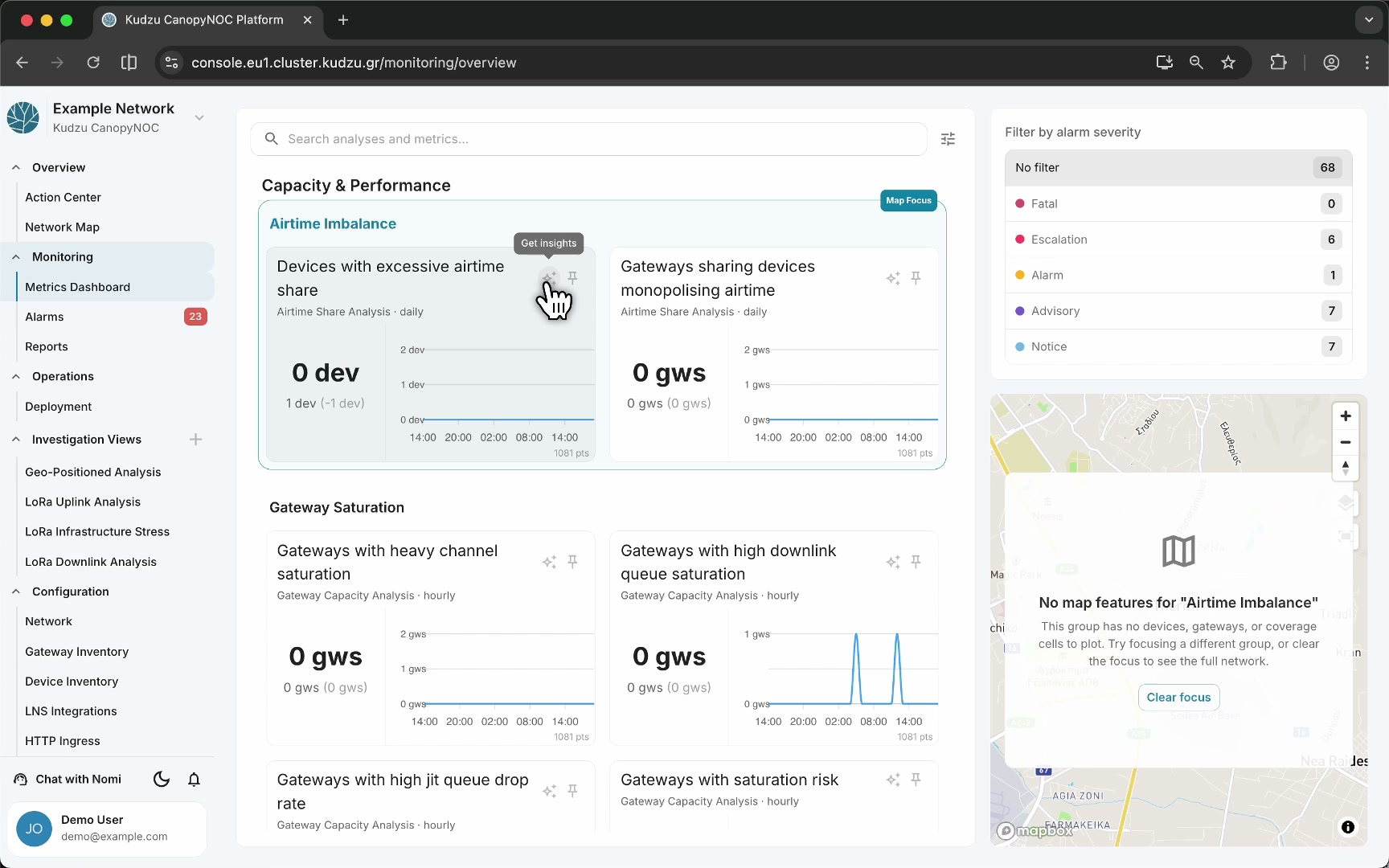
Nomi is the platform’s built-in AI chatbot assistant. It is accessible from multiple entry points across the interface and can answer questions about your network, specific resources, problems, and operational guidance. When opened from a contextual Get Insights button, Nomi pre-focuses its context on the specific item you clicked, enabling targeted questions.

Key areas#
- Chat drawer — a sidebar panel on the right side of the screen, overlaying the main content area.
- Session header — displays “New Chat Session” with a dropdown for managing sessions and a close button.
- Message area — shows the conversation history, starting with a greeting: “Hi there! I’m Nomi - your virtual AI consultant.”
- Context tag — when opened from a Get Insights button, a removable tag in the input area shows the focused item (e.g., “Devices with Excessive Airtime Share”).
- Text input — a field for typing questions, with a send button.
How to use this view#
Open Nomi#
You can access Nomi from three entry points:
- Chat with Nomi button — located in the navigation sidebar utility bar at the bottom of every page. Opens the chatbot in general mode.
- Forward-slash (
/) keyboard shortcut — press/at any point in the interface to open the chatbot drawer. - Get Insights sparkle button — a sparkle icon that appears on specific items throughout the interface. Opens the chatbot with context pre-focused on that item.
Ask contextual questions#
When you open Nomi from a Get Insights button, the chatbot displays a prompt like “How can I help you with Devices with Excessive Airtime Share?” and shows the context item as a tag in the input area. Ask specific questions about that resource or problem.
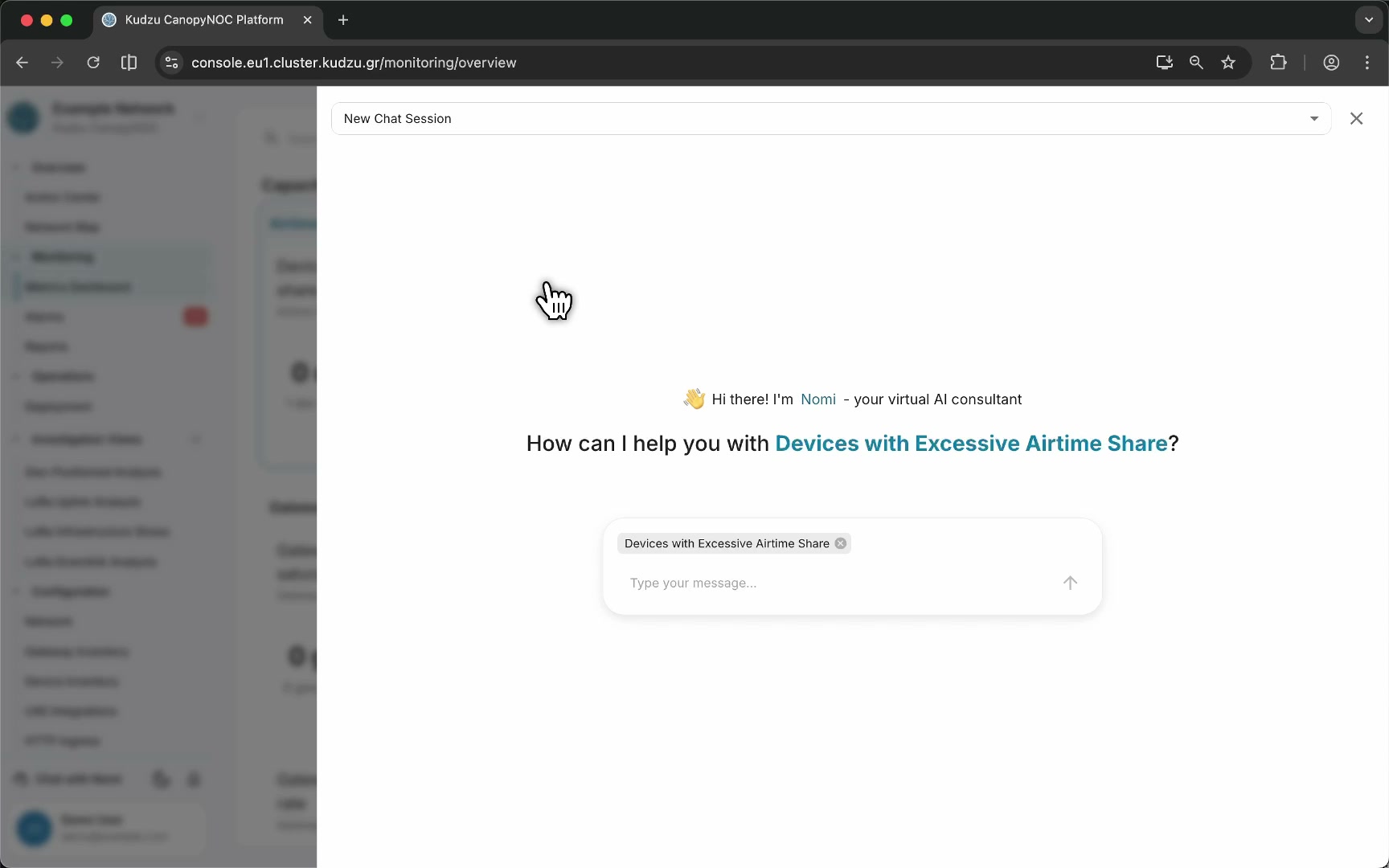
Remove the context tag to switch to general mode.
Get Insights buttons are available on#
- Metric cards on the Metrics Dashboard
- Gateway entries in the Gateway Inventory
- Device entries in the Device Inventory
- Alarm entries in the Alarms view
Manage chat sessions#
Use the session dropdown in the header to manage multiple chat sessions. The chatbot remains open while you navigate between pages and supports multi-turn conversations within a session.