Navigation Sidebar
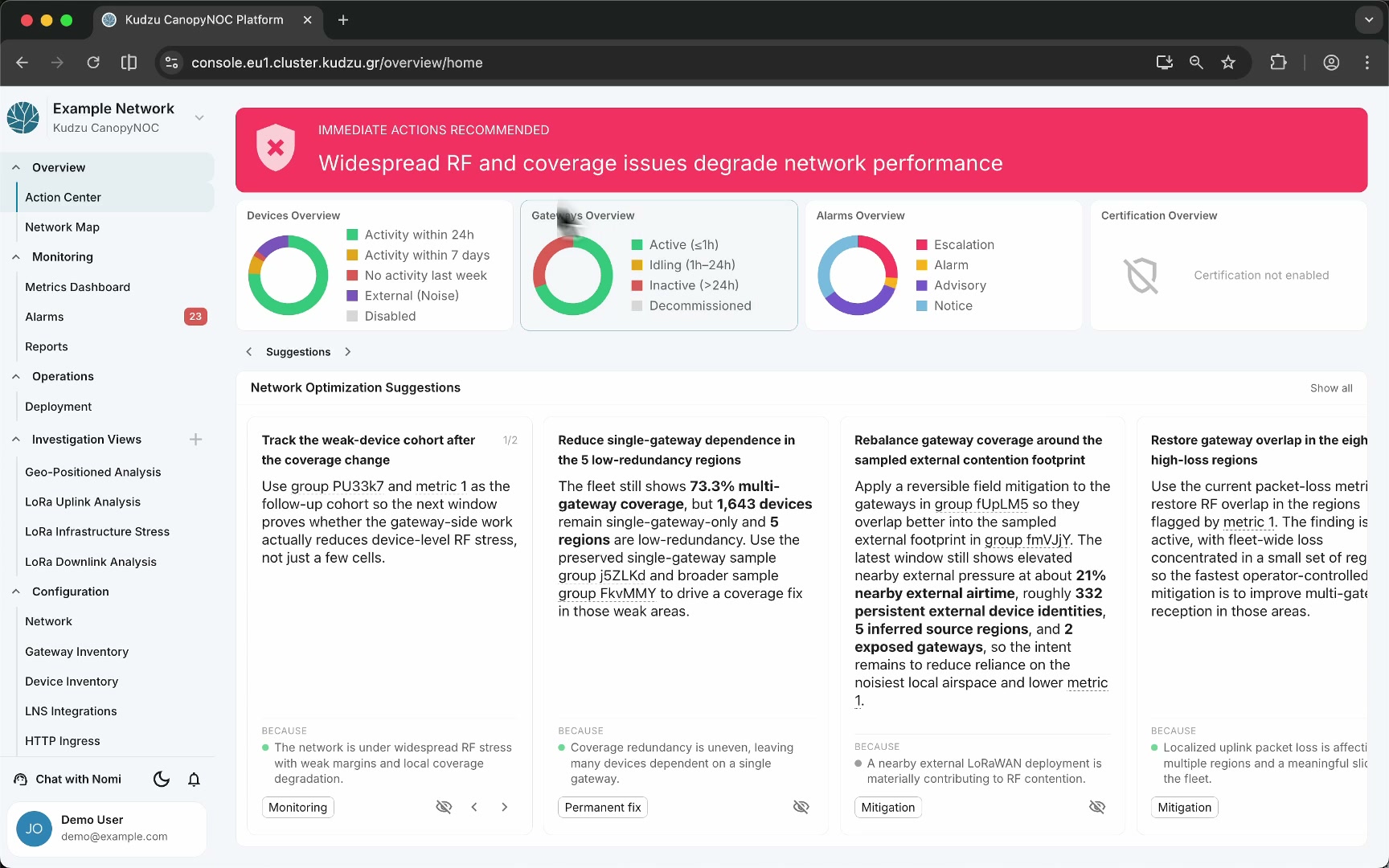
The navigation sidebar is the persistent left panel visible on every page of Kudzu Canopy NOC. It organizes access to all platform features in a hierarchical layout and provides quick access to global utilities such as network switching, notifications, theme control, the Nomi chatbot, and user account management.

Key areas#
- Network header (top) — displays the current network name and the Kudzu Canopy NOC label. Click the header to open the network selector dropdown and switch between networks.
- Navigation menu (middle) — contains the main feature navigation organized into five groups that follow the operational workflow: Overview, Monitoring, Operations, Investigation Views, and Configuration.
- Utility bar (bottom) — a horizontal button row with the Chat with Nomi button, the theme toggle, and the notifications bell.
- Profile button (bottom) — shows your name and email. Click it to open the profile menu with account options.
How to use this view#
Navigate features#
The menu is organized from high-level overviews to detailed configuration:
- Overview — Action Center and Network Map surface the immediate network state.
- Monitoring — Metrics Dashboard and Alarms provide automatic KPI tracking and alerting. Reports offers historical summaries.
- Operations — Deployment supports field coordination during network rollout.
- Investigation Views — on-demand diagnostic dashboards. Click the + button next to the heading to add a new view.
- Configuration — manage network setup, gateway and device inventories, LNS integrations, ingress endpoints, and monitoring KPIs.
The currently active item is highlighted in the menu.
Switch networks#
Click the network name at the top of the sidebar to open the network selector. From there you can switch to a different network, explore public networks, manage networks, or create a new one.
Use the utility bar#
- Chat with Nomi — opens the Nomi chatbot sidebar drawer.
- Theme toggle — switches between light and dark theme. The button shows a moon icon in light mode and a sun icon in dark mode.
- Notifications bell — opens the notification panel. A badge appears on the bell when unread notifications exist. Notifications are also delivered as emails and browser notifications.
Access account options#
Click your profile button at the bottom of the sidebar to open the profile menu where you can manage account settings, billing, API tokens, or switch user context.