Device Inventory
The Device Inventory lists all devices (motes) in your network and provides a tabbed detail view for inspecting and editing each device’s identity, location, signal quality, and permissions.

Key areas#
Device list#
The main view shows a list of all devices in the system. Each device entry provides a pencil icon that opens the device detail view.
Device detail view#
Clicking the pencil icon opens the detail view for a single device. The view is organized into tabs.
General tab#
Displays identity and metadata for the device. Most of this information is synchronized automatically through integrations, but you can manually override values if they have changed.
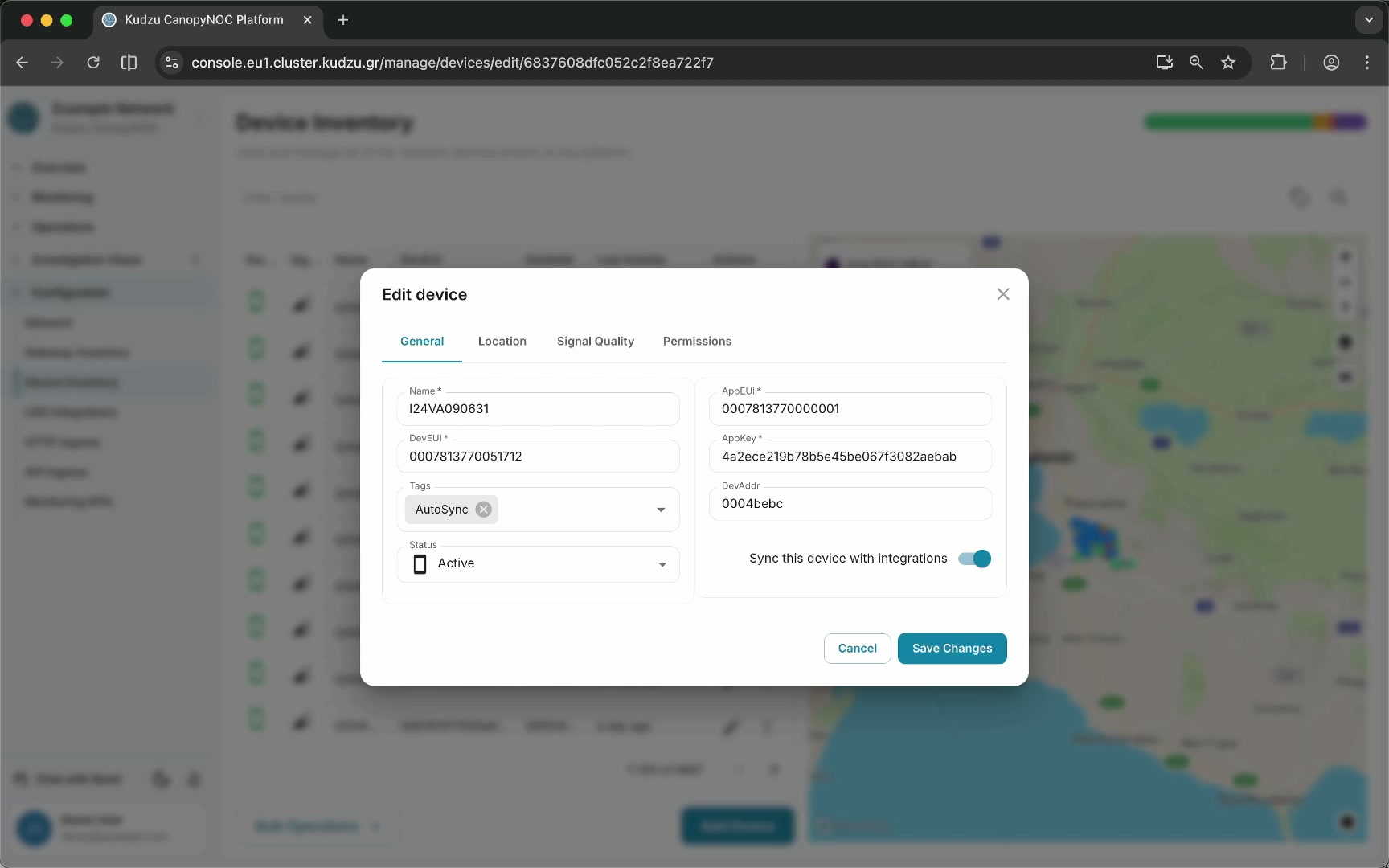
| Field | Purpose |
|---|---|
| Device EUI | The unique LoRaWAN device identifier |
| Application EUI (AppEUI) | The application identifier |
| Application Key (AppKey) | The device’s application key |
Location tab#
The location tab shows a map with two pins:
- Blue pin (draggable) — the operator-specified location for this device. Drag this pin to set or correct the device’s known position.
- Red pin (non-draggable) — the platform’s estimated location based on triangulation of collected data.
The contrast between the two pins helps you verify whether the device is where you expect it to be, or whether it may have been moved or mislocated.

Signal quality tab#
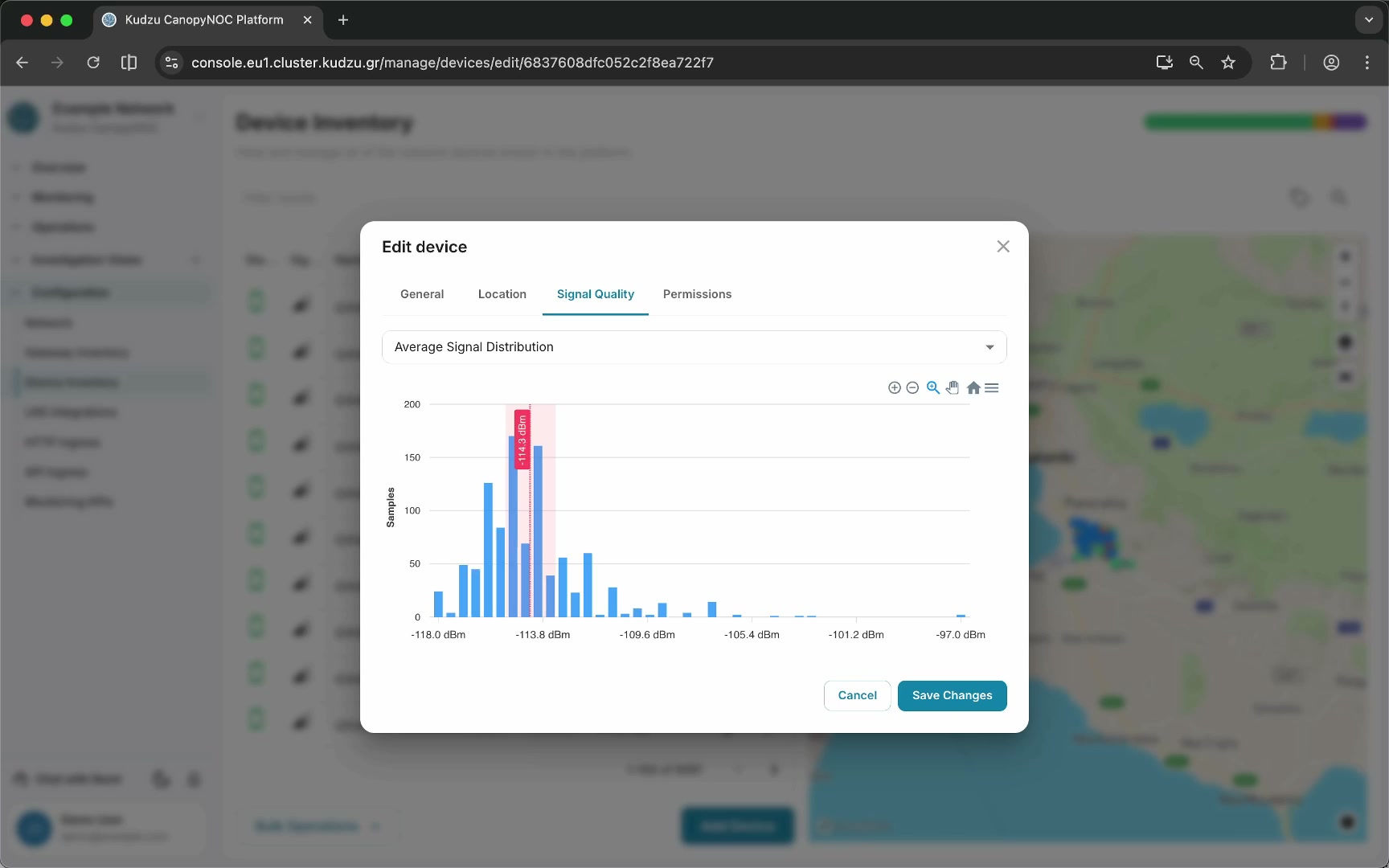
Displays a histogram showing the signal quality observed for this device across all gateways in the network. An average marker indicates the mean signal quality, and a band marker shows the typical range.
This visualization helps you understand how well a device is being received by surrounding gateways and whether it has adequate RF coverage.
Permissions tab#
Configure the owner of the device, assign organization access, and optionally make the resource public. The same permissions model applies to networks, gateways, and devices.
How to use this view#
- Navigate to Configuration > Device Inventory in the sidebar.
- Browse or search the device list.
- Click the pencil icon on a device to open its detail view.
- On the General tab, verify or update identity fields (Device EUI, AppEUI, AppKey).
- On the Location tab, compare the blue pin (operator-specified) against the red pin (platform-estimated) to verify device placement. Drag the blue pin if correction is needed.
- On the Signal Quality tab, review the histogram to assess how well the device is received across gateways.
- On the Permissions tab, manage ownership and organization access.
Related pages#
- Network — general network metadata and preferences
- Gateway Inventory — registered gateways and their settings
- LNS Integrations — connections to LoRaWAN Network Servers