Connect via HTTP Ingress
This guide explains how to set up an HTTP ingress integration in Canopy NOC. HTTP ingress accepts pushed payloads from external systems via webhook, making it useful when a direct LNS integration is not available.
HTTP ingress is a secondary data path. Because data arrives after deduplication at the LNS level, the platform receives only application-level traffic. Low-level RF analytics such as per-gateway signal quality, spreading factor distributions, and multi-gateway correlation are not available through this method. Use a direct LNS integration whenever possible.
Before you begin#
- Confirm you have an active Canopy NOC account with permission to manage integrations.
- Have administrator access to the upstream system (e.g., Actility ThingPark) that will push payloads to Canopy NOC.
- Know which payload format your upstream system uses so you can select the correct decoder script.
Step 1 – Create the HTTP ingress#
- Open the sidebar and navigate to Configuration > HTTP Ingress.
- Click Create HTTP Integration in the top-right corner.
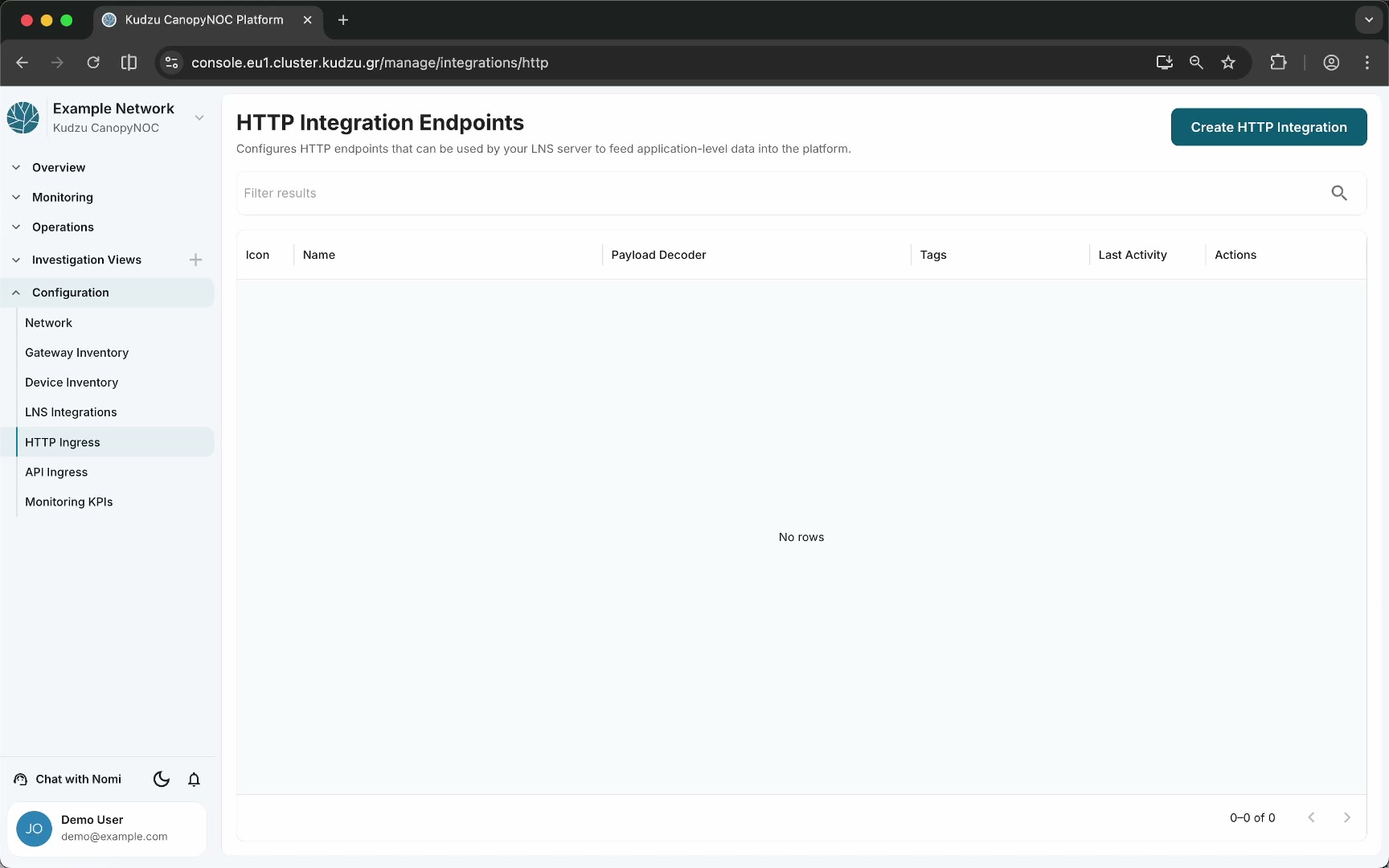
- Select the payload decryption script that matches your upstream system’s format (e.g., Actility ThingPark).
- Enter a descriptive Name for this integration.
- Click Save.
Step 2 – Retrieve the endpoint URL and token#
After saving, the platform generates a unique endpoint URL and authentication token for this integration.
- In the HTTP Ingress list, click the eye icon on the integration you just created.
- Copy the HTTP endpoint URL and the authentication token from the detail dialog.
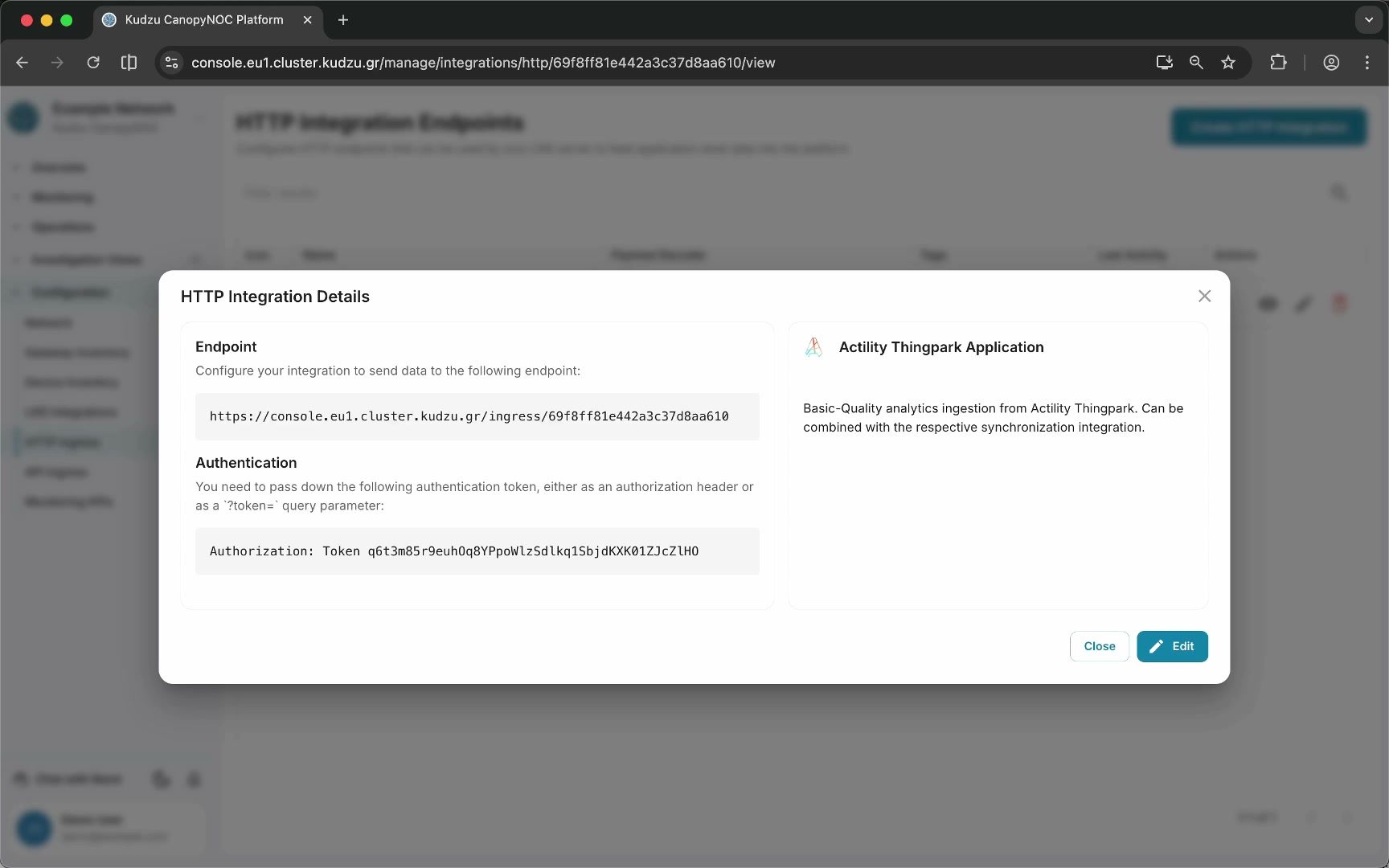
Store the authentication token securely. You will need both the URL and the token to configure the upstream system.
Step 3 – Configure the upstream system#
In your upstream platform (e.g., Actility ThingPark), set up a webhook or forwarding rule that sends payloads to the Canopy NOC endpoint.
- Open the webhook or HTTP forwarding configuration in your upstream system.
- Set the destination URL to the endpoint URL copied in Step 2.
- Add the authentication token as required by the upstream system (typically as a header or query parameter).
- Save and activate the forwarding rule.
Step 4 – Verify data flow#
- Return to Configuration > HTTP Ingress in Canopy NOC.
- Click the eye icon on your integration.
- Confirm that the Last activity timestamp updates and that metrics show incoming data.
What to do next#
- Manage Investigation Dashboards to import diagnostic views.
- Review the Metrics Dashboard for KPI summaries.
- Consider migrating to a direct LNS integration for full RF-level analytics.