Connect The Things Stack
This guide walks you through connecting a The Things Stack (V3) deployment to Canopy NOC. By the end, your gateways will stream event data into the platform for real-time monitoring and analytics. The integration supports both The Things Network (TTN) community and The Things Industries (TTI) private deployments.
Before you begin#
- Confirm you have an active Canopy NOC account with permission to manage integrations.
- Have administrator access to your TTS/TTI V3 console.
- Verify that the Gateway ID in your TTS cluster matches the Gateway Name you plan to use in Canopy NOC.
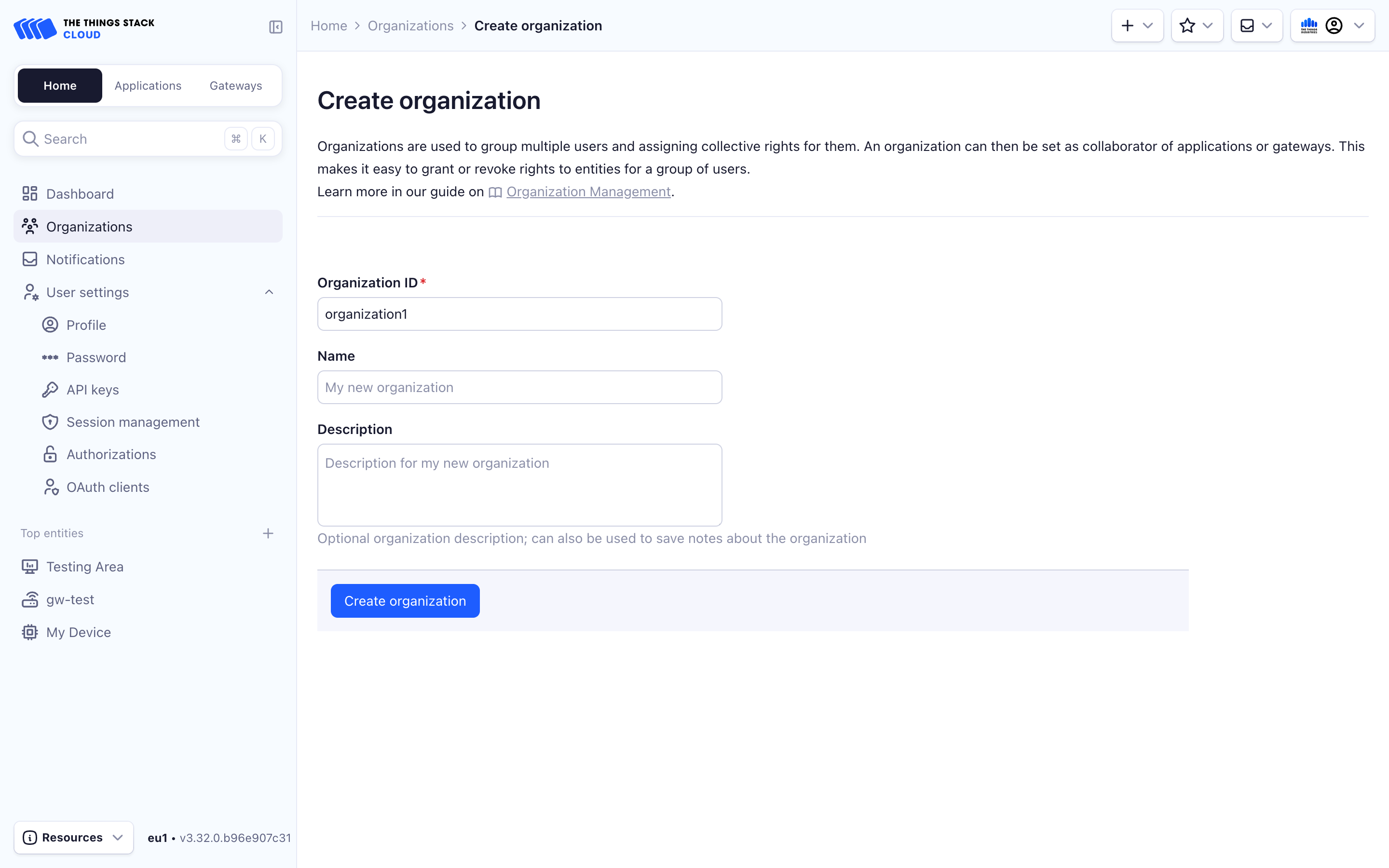
Step 1 – Create an organization in TTS#
Organize the gateways you want to monitor under a dedicated organization. If you already have organizations in your cluster, create a separate one for the Canopy NOC integration to keep permissions isolated.
- Log in to your TTS/TTI V3 console.
- Navigate to Organizations and create a new organization.
Step 2 – Create an API key#
Generate a scoped API key that Canopy NOC will use to subscribe to gateway events.
- Open the organization you created and navigate to API Keys.
- Click Add API Key.
- Instead of granting all rights, select only the following individual rights:
- View gateway information
- View gateway location
- View gateway status
- Read gateway traffic
- List gateways the organization is a collaborator on
- Click Create API Key.
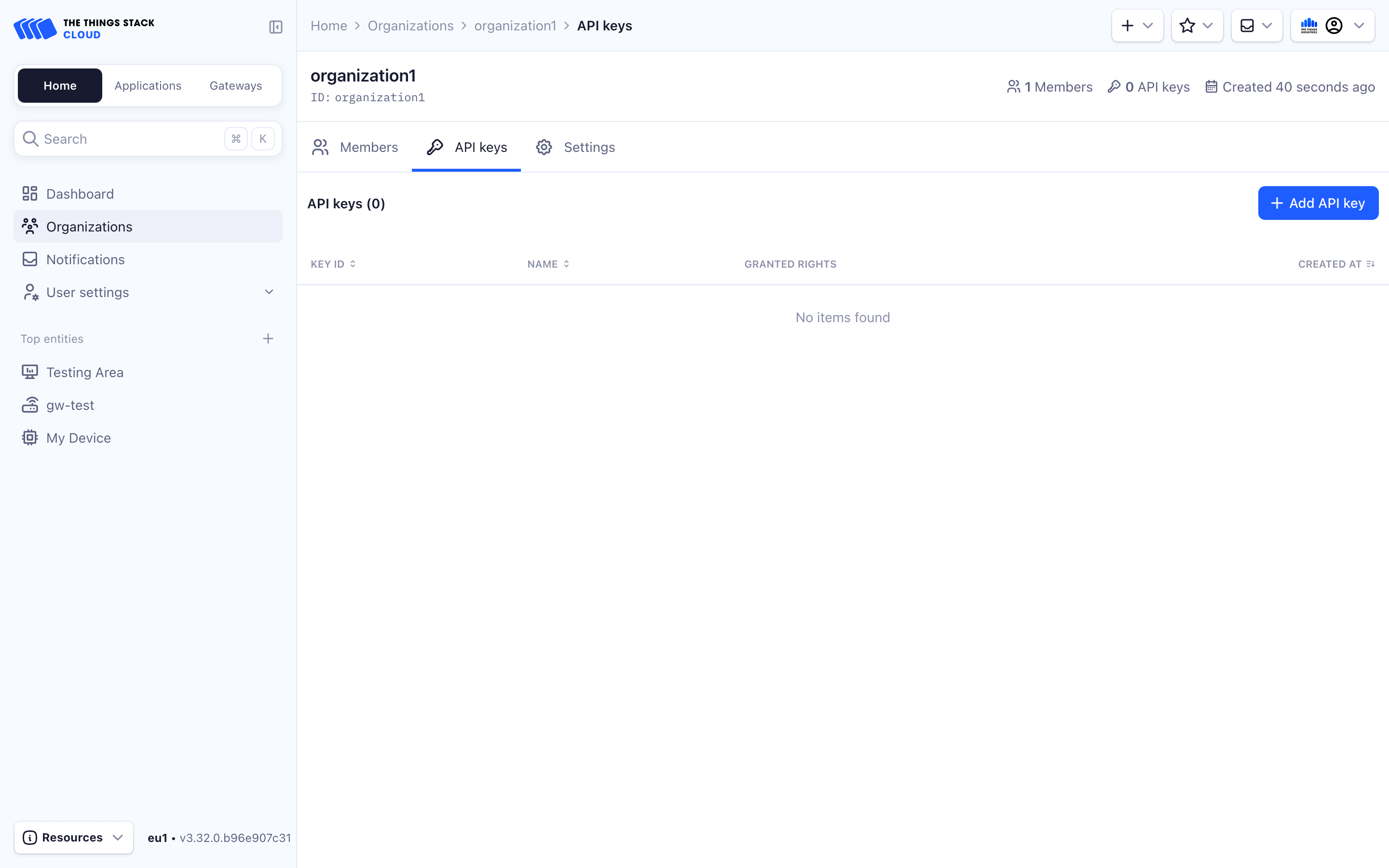
- Copy the generated key immediately and store it securely. The key is displayed only once.

You cannot retrieve this API key after closing the dialog. Save it in a password manager or other secure location before continuing.
Step 3 – Add the organization as a gateway collaborator#
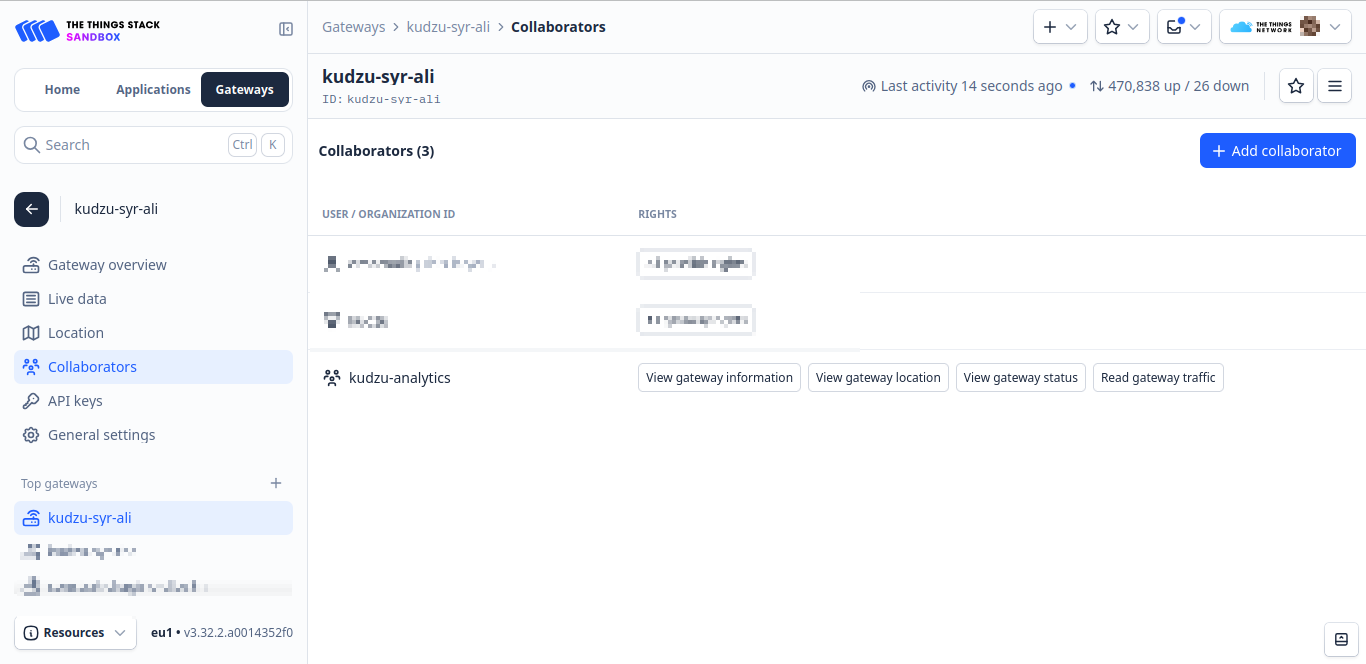
Grant the organization access to each gateway you want to monitor.
- In the TTS console, open each target gateway.
- Navigate to Collaborators and add the organization you created in Step 1.
- Repeat for every gateway that should appear in Canopy NOC.
Step 4 – Add the LNS integration in Canopy NOC#
With the TTS side configured, switch to the Canopy NOC platform to complete the connection.
- Open the sidebar and navigate to Configuration > LNS Integrations.
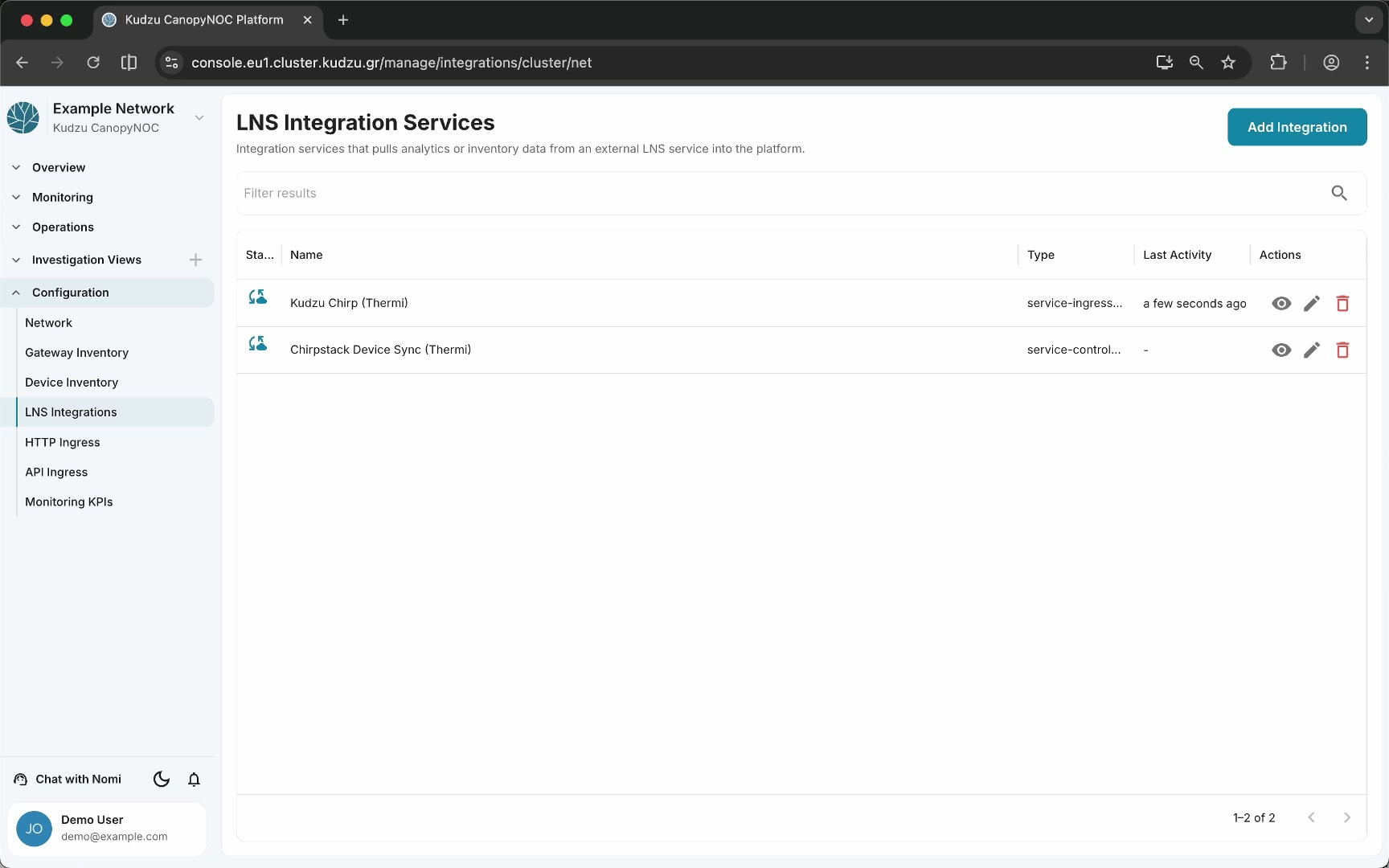
- Click Add Integration in the top-right corner.
- Select The Things Stack from the integration type list.
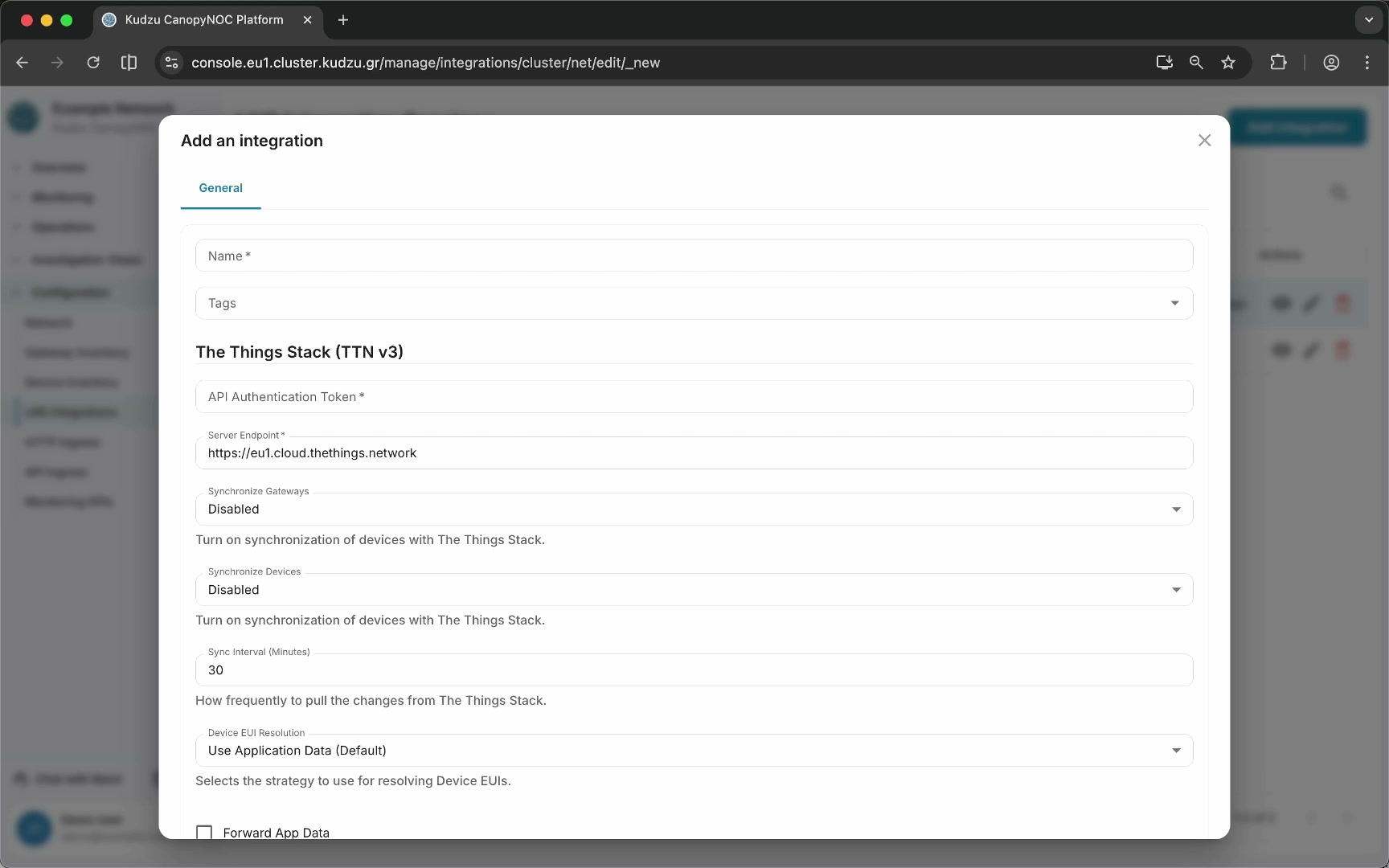
- Fill in the integration form:
- Name – a descriptive label for this integration.
- Tags – optional categorization tags.
- Authentication token – paste the API key from Step 2.
- Server endpoint – verify the endpoint matches your cluster. The default points to the European TTS sandbox. Change it if you use a different cluster or a private TTI deployment.
- Synchronize gateways – enable this toggle to automatically import gateways from TTS.
- Synchronize devices – enable if you also want device metadata imported.
- Click Save.

Leave Forward Data and Forward Stream ID unchecked unless you have a specific need for those features.
Step 5 – Import gateways#
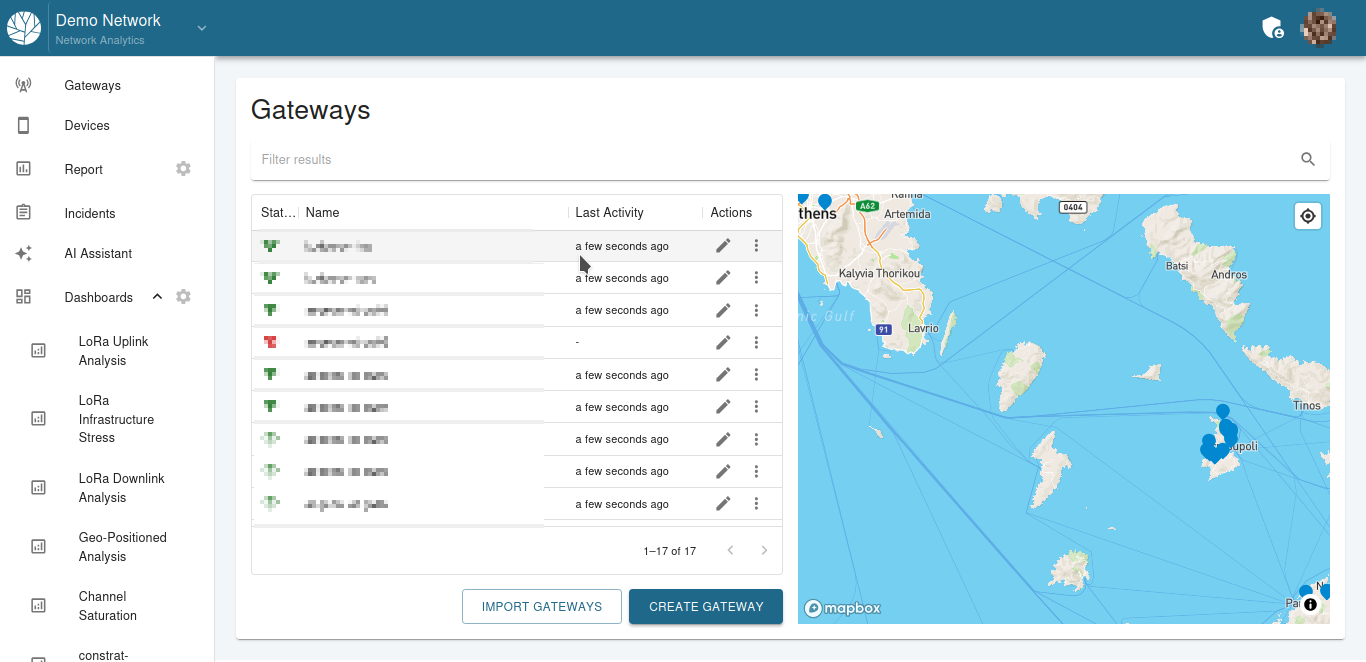
If you did not enable automatic gateway synchronization, import gateways manually.
- In the sidebar, navigate to Configuration > Gateway Inventory.
- Click Import Gateways.
- Select the gateways you want to monitor and confirm the import.

If your gateways are online, data should begin arriving within a few minutes.
What to do next#
- Manage Investigation Dashboards to import preconfigured diagnostic views.
- Investigate an Alarm to drill into any issues the platform detects.
- Review the Metrics Dashboard for computed KPI summaries.