Connect ChirpStack
This guide explains how to connect a ChirpStack deployment to Canopy NOC through its MQTT integration. Once connected, gateway and device data flows into the platform for real-time monitoring and analytics.
Before you begin#
- Have administrator access to a running ChirpStack instance with at least one configured gateway.
- Confirm you have an active Canopy NOC account with permission to manage integrations.
- Ensure your MQTT broker is reachable from the Canopy NOC platform (public network access required).
Step 1 – Expose your MQTT broker#
Canopy NOC connects to ChirpStack by subscribing to its MQTT broker. The broker must be accessible from the public internet.
- Configure your MQTT broker (e.g., Mosquitto) for external access.
- Enable password authentication.
- Enable TLS encryption.
Running an MQTT broker without authentication or TLS exposes your network data to unauthorized access. Refer to the Mosquitto documentation for configuration guidance.
Step 2 – Add the ChirpStack integration in Canopy NOC#
- Open the sidebar and navigate to Configuration > LNS Integrations.
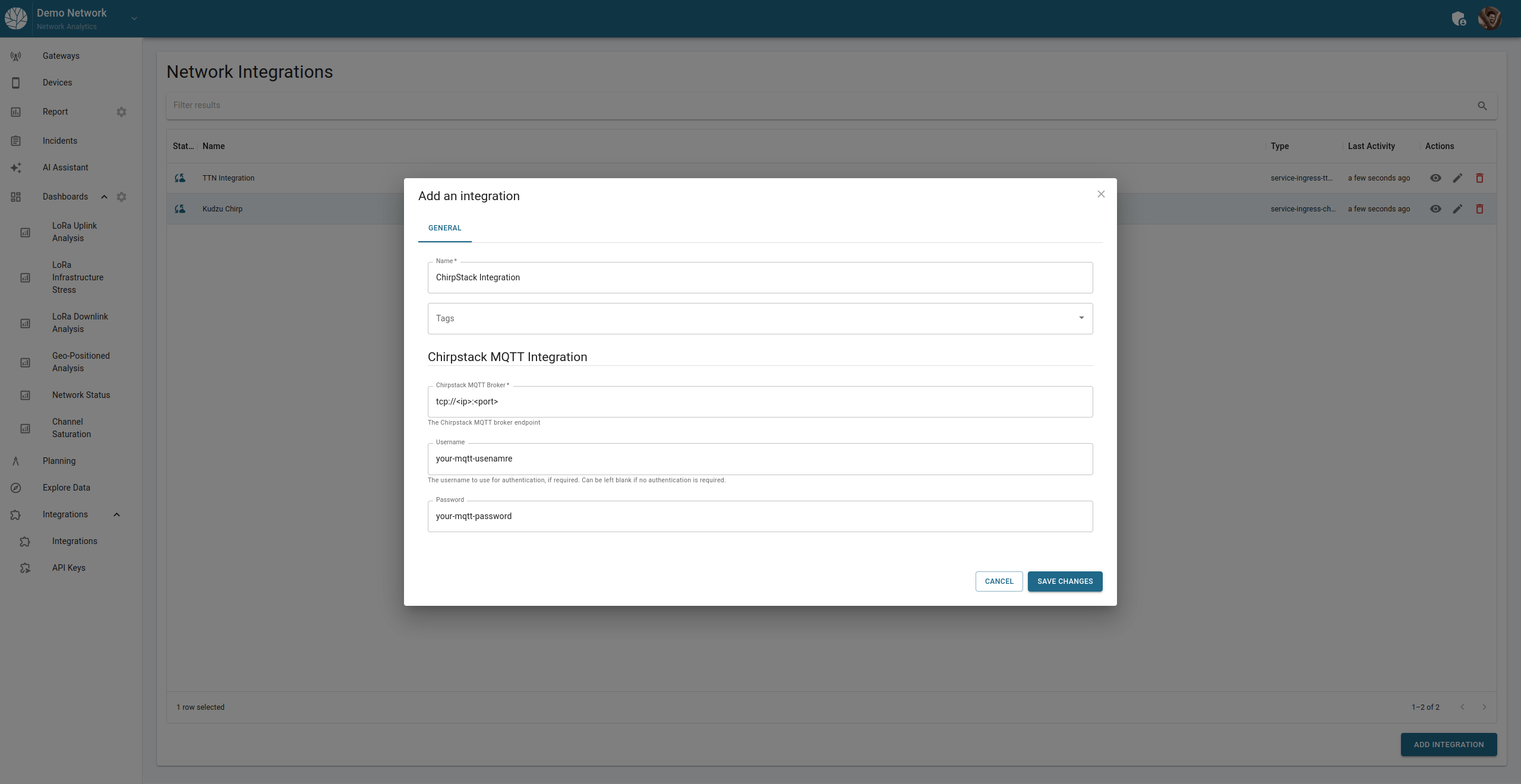
- Click Add Integration in the top-right corner.
- Select ChirpStack from the integration type list.
- Configure the integration:
- Endpoint – enter
tcp://<broker-ip>:<port>. If you enabled TLS, usessl://instead oftcp://. - Username – the MQTT broker username.
- Password – the MQTT broker password.
- If your broker uses a self-signed certificate, check Do not verify server certificate.
- Endpoint – enter
- Click Save.
Step 3 – Bind gateways to the integration#
Associate each gateway in Canopy NOC with the ChirpStack MQTT integration so the platform knows which data stream belongs to which gateway.
- Navigate to Configuration > Gateway Inventory.
- Open the settings for each gateway you want to monitor.
- Select the ChirpStack MQTT integration as the data source.
- Verify that the LoRa Gateway EUI field matches the EUI registered in ChirpStack exactly.
The Gateway EUI in Canopy NOC must be an exact match with the EUI in ChirpStack. A mismatch will prevent data association.
Step 4 – Verify connectivity#
- Return to Configuration > LNS Integrations.
- Click the eye icon on the ChirpStack integration to open the metrics and logs view.
- Confirm that log entries show successful MQTT subscription and that the Last activity timestamp updates.
Use the Test Integration option in the integration detail view to validate connectivity before waiting for live traffic.
What to do next#
- Manage Investigation Dashboards to import diagnostic views for your ChirpStack network.
- Review the Metrics Dashboard for computed KPI summaries.
- Investigate an Alarm when the platform detects threshold violations.